MQTT Broker
Description
MQTT broker provides reusable connection parameterization as Orchestra Landscape entries.
The configured connections allow Orchestra clients to connect to MQTT brokers using the TCP network protocol.
These entries are referenced by the MQTT channels used in scenarios, such as the MQTT v3 Publisher Adapter and MQTT v3 Subscription Start element.
If the targeted MQTT broker requires authentication, create a suitable Credential first.
Create a New Environment Entry
To create a new MQTT broker Envirionment Entry, follow the steps described in the general description of Environment Entry
MQTT environment entry editor
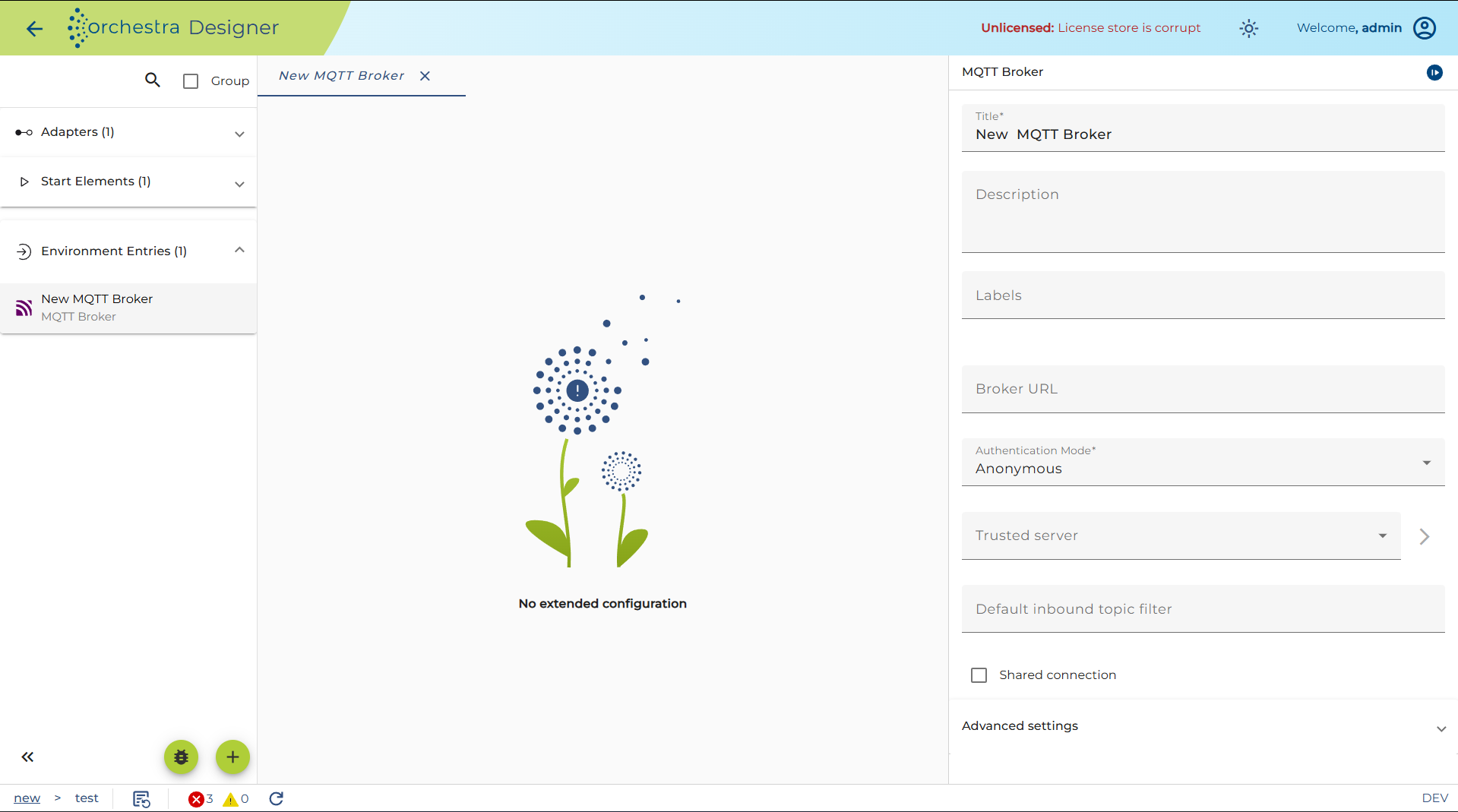
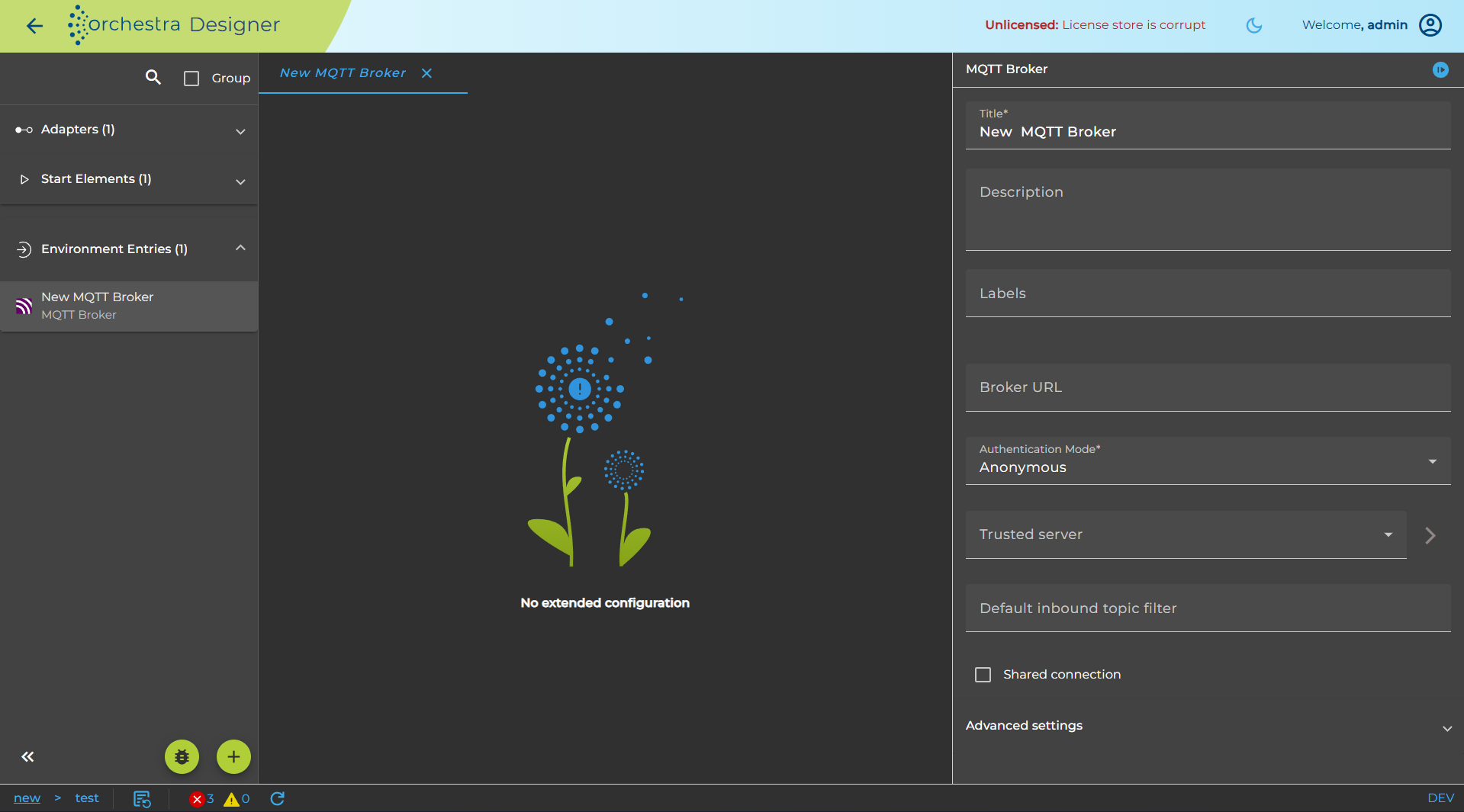
Enter the URL of the targeted MQTT broker in the field (Broker URL).
The URL must follow the typical Uniform Resource Identifier (URI) format:
tcp://hostname:port
tcp://specifies the transport protocolhostnameorIP addressidentifies the MQTT brokerportis optional
Typical ports include:
- 1883 – unencrypted connection
- 443 or 8883 – encrypted connection using Transport Layer Security (TLS)
The field (Broker URL) supports dynamic parameters as described in the MQTT Dynamic Parameters section.
Default Inbound Topic Filter
The default topic defines the standard behavior of an MQTT subscription channel.
Topics can be configured through the MQTT Environment Entry without redeploying the scenario.
If a topic filter is configured in the environment entry, the topic defined in the channel configuration is ignored and the one defined in the broker configuration is used instead.
Authentication and Credentials
If a secure protocol is used, Orchestra sends its default identity or the identity provided by the configured authentication credential.
If an individual credential must be used, a Key-Pair (PKCS#12) authentication credential must be provided and the Client Certificate authentication mode must be selected.
If a trusted server is configured, Orchestra can verify the identity of the MQTT broker using an X.509 certificate. In this case, Orchestra compares the configured identity with the identity provided by the MQTT broker during the connection process.
The connection is only established if the certificates match. The certificate of the trusted server must therefore be provided as authentication information in the trusted server credential.
If authentication is required, select the appropriate Authentication Mode from the drop-down list (Authentication Mode).
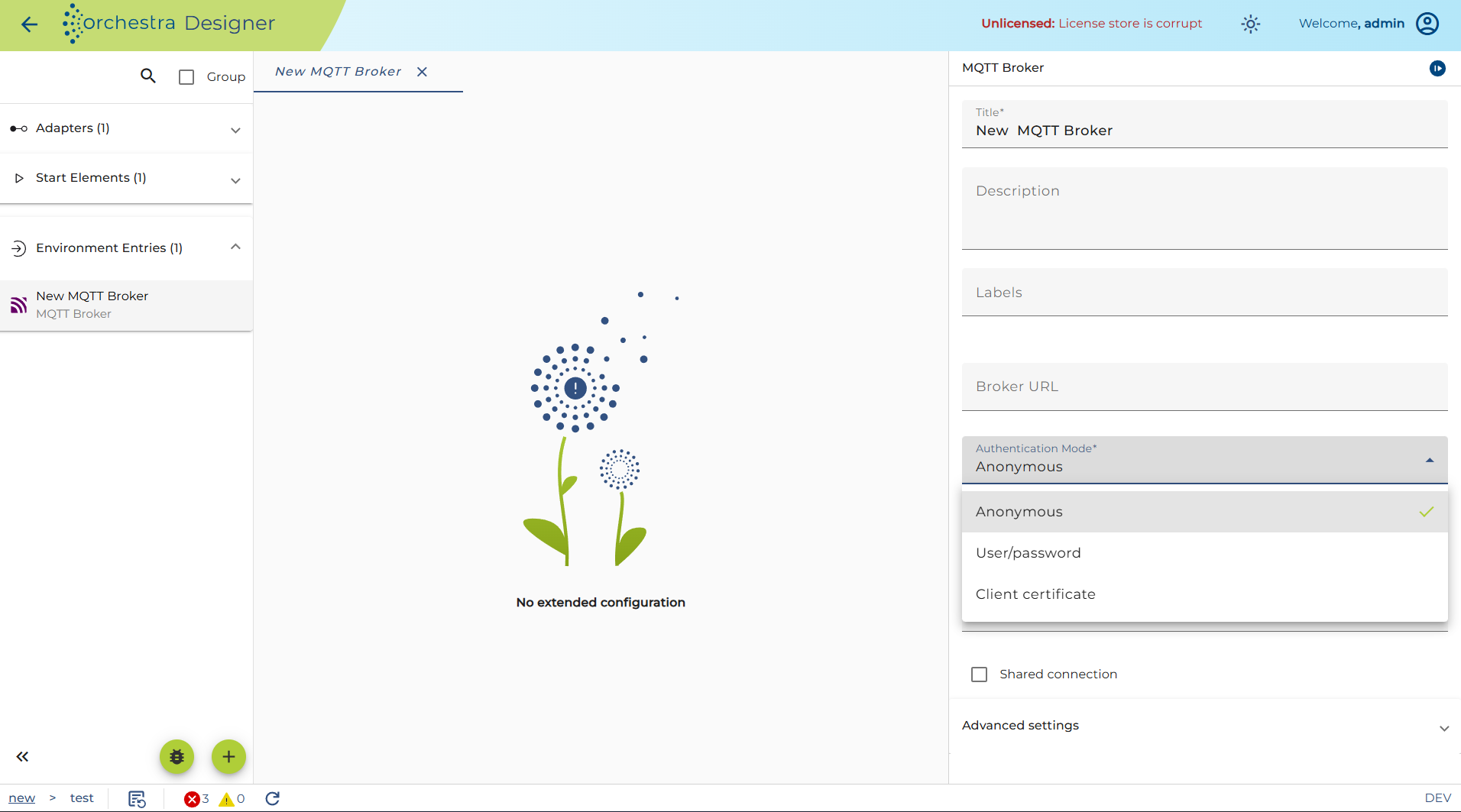
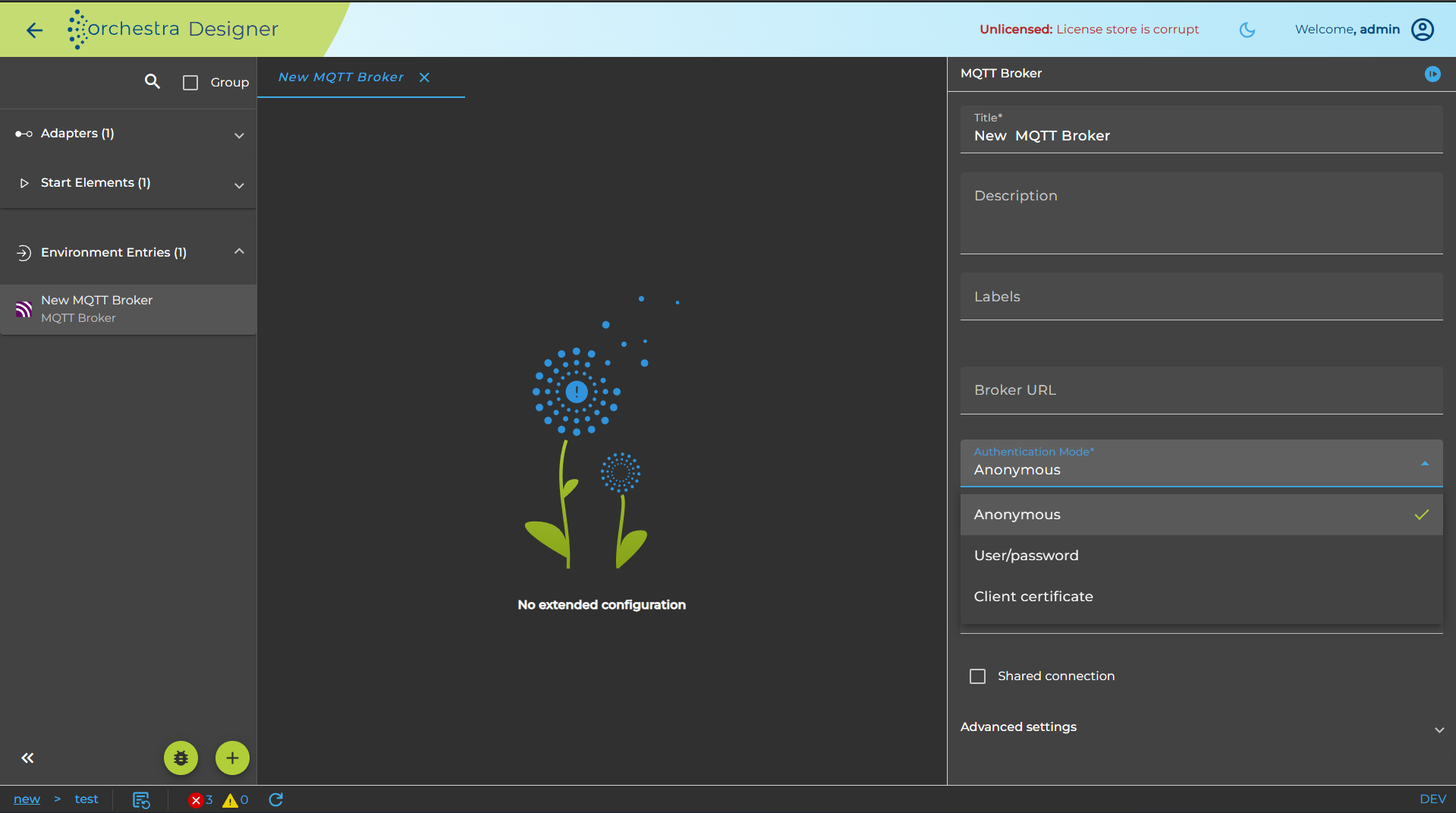
Supported authentication modes include:
- Anonymous – user authentication is disabled
- UserPassword – username and password authentication
- ClientCertificate – authentication using a PKCS#12 key pair
The first available Security Credential of the selected type is automatically chosen in the field (Authentication Credential). Other credentials can be selected from this combo box.
Advanced Settings
The environment entry supports additional advanced configuration options.
-
Persistence (Persistence): Defines a directory in the local file system used as a message buffer.
-
Clean Session (Clean Session): Determines whether the client and server should maintain their state across restarts and reconnects.
-
Keep-Alive Interval (Keep-Alive Interval): Measured in seconds, this value defines the maximum acceptable interval between transmitted or received messages.
-
Connection Timeout (Connection Timeout): Defines the maximum time (in seconds) the client waits for a connection to the MQTT broker.
Dynamic Parameters
The field (Broker URL) supports dynamic parameters (typically used for outbound channels).
Parameters use the format:
$(parameter_name)
Example:
$(host)
During execution, these parameters are replaced with the request parameter values provided when the channel referencing this environment entry is called.
Test a Landscape Entry
You may test the MQTT Broker like every other Environment Entry.
If the Environtment Entry is configured, the user can test its functionality by clicking on the test symbol in the toolbar of the Designer.
Then a dialog opens showing the parameters of the Environment Entry. Set the required parameters and click the Test button to check whether the connection was successful or not
If the test was successful, click on Finish.